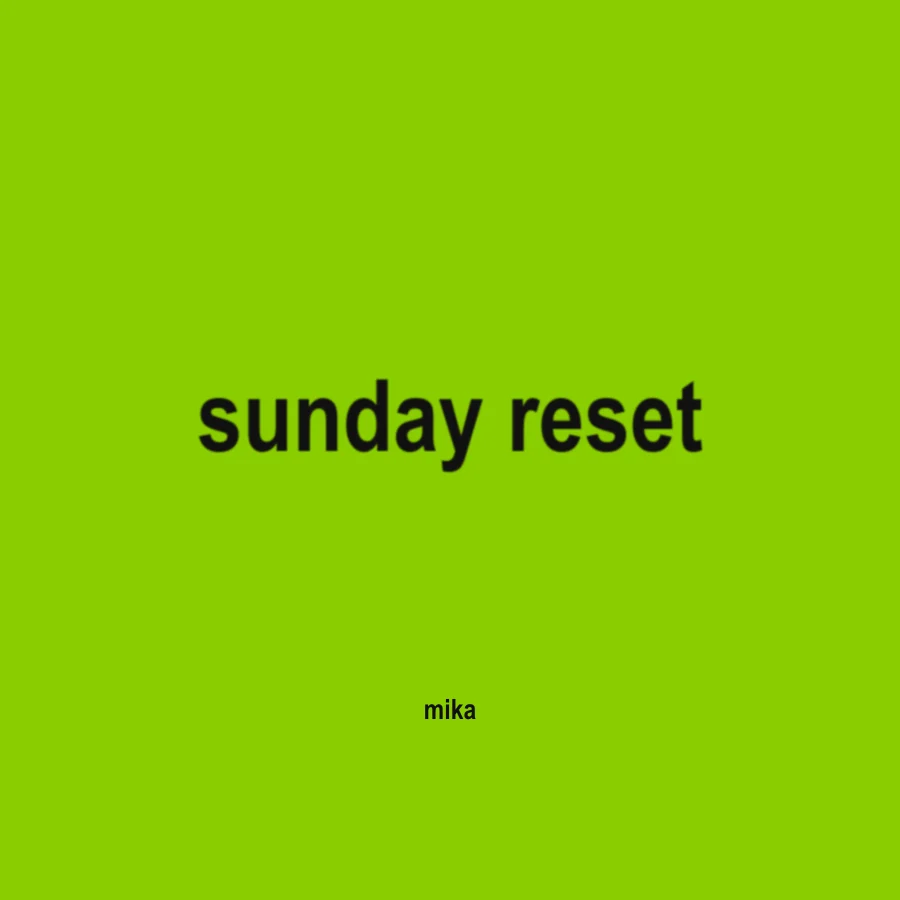
Open the Cover Tool
The album cover maker is built into this page, so you can follow each step without switching tabs. Everything renders in your browser, and an optional background photo stays on your device.
How to Make a Brat Album Cover in 4 Steps
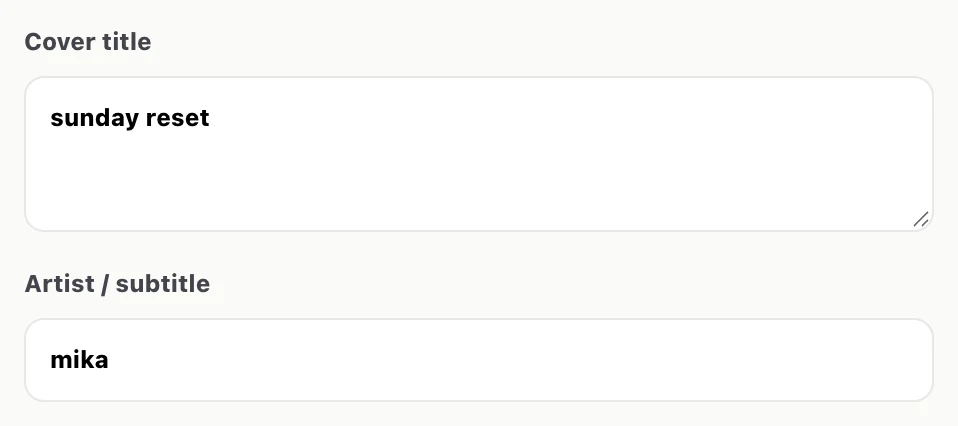
1. Type the Cover title and Artist / subtitle
Enter your title in Cover title and a name in Artist / subtitle. The title is drawn in lowercase automatically, which is part of the Brat look, so you do not need to retype it. One to three words read best. For a longer title, press Enter to split it over two or three lines.
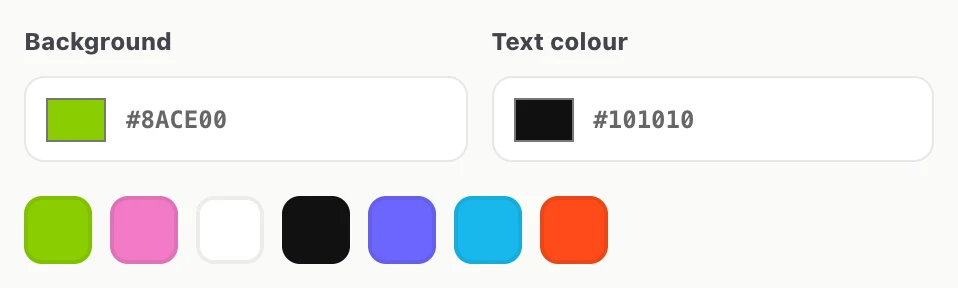
2. Choose the Background and Text colour
Background starts on #8ACE00, the lime green most people know from the album, with dark text (#101010). Tap a swatch for pink, white, black, purple, blue or orange, or type any hex value. Keep strong contrast: dark text on light colours, light text on black.
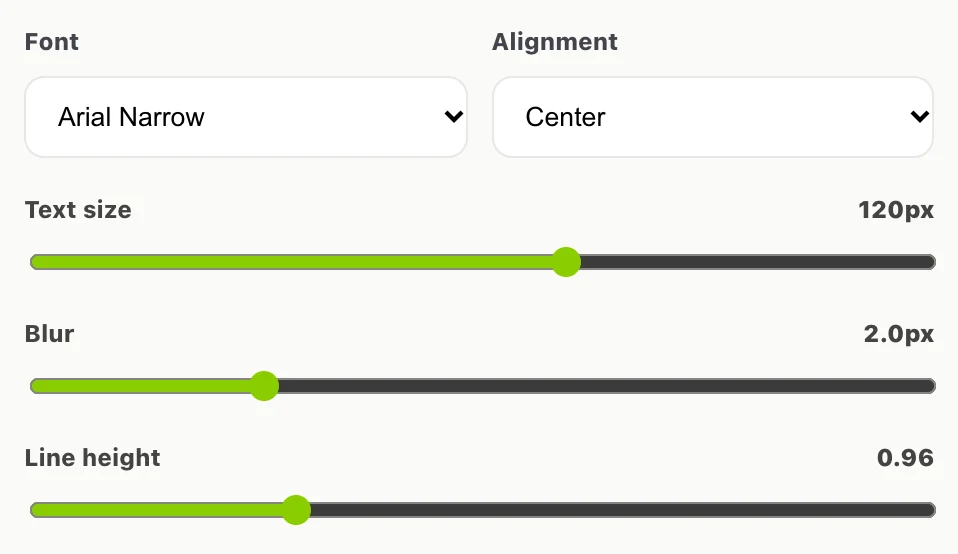
3. Set the Font, Text size and Blur
Leave Font on Arial Narrow for the condensed look and Alignment on Center. Raise Text size until the title fills most of the width (120px here). Then add Blur slowly: 1.5–2.5px softens the edges without hurting readability. Line height only matters when the title has more than one line.
4. Pick a format and Download
Choose PNG, JPG or WebP from the format menu next to Download, then press it. Every format saves a 3000 × 3000 pixel square. PNG keeps the sharpest edges; choose JPG if an upload page rejects your file. Copy Image and Reset sit beside it.

Want a photo behind the title? Use Background image (optional) before step 4. It accepts PNG, JPG or WebP and the file is not uploaded anywhere.
Two Common Mistakes
Too much blur
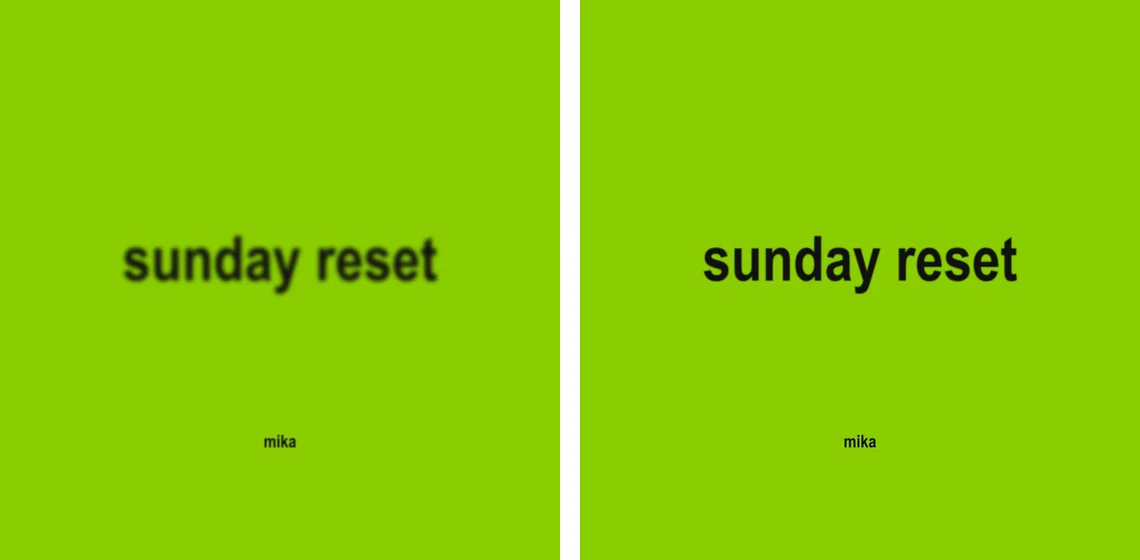
The Blur slider goes up to 8px. At that level the title turns into a smudge, especially when the cover is shown as a small thumbnail in a music app. Below, the same cover at 8px (left) and 2px (right).
A long title on one line
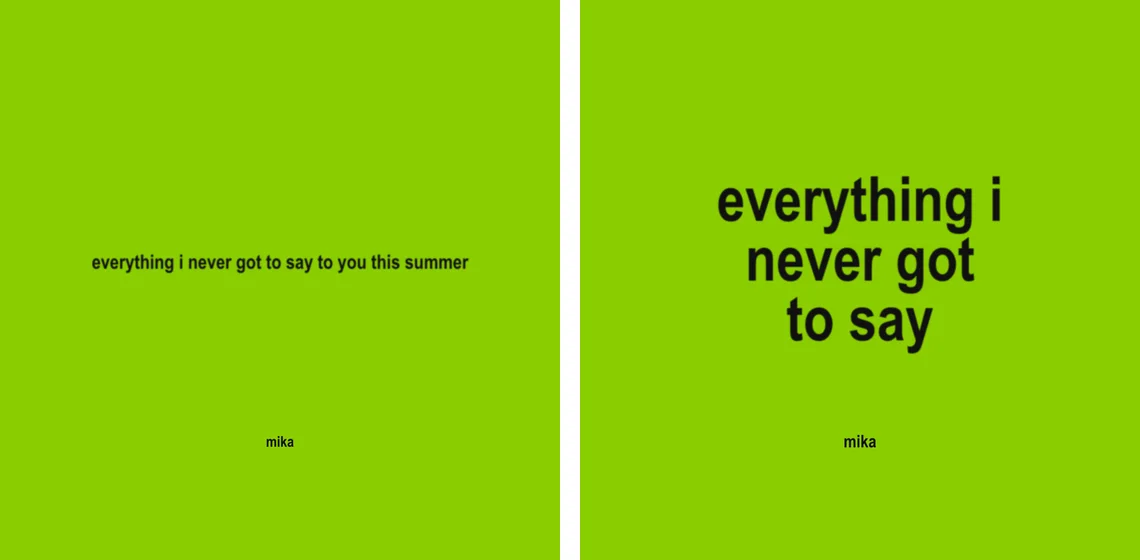
The tool shrinks the title until it fits the width, so a long sentence on one line ends up tiny. Press Enter in Cover title to break it into short lines; the text gets much bigger.
Brat Green and the Font
The cover tool’s default green is #8ACE00. It is a widely used digital approximation of the album colour, not an official specification, and screens show it slightly differently.
| Detail | Value in this tool |
|---|---|
| Hex | #8ACE00 |
| RGB | 138, 206, 0 |
| Default text colour | #101010 |
| Default font | Arial Narrow |
The exact typeface on the original cover has not been officially published. Arial Narrow is a close, practical match, and most of the look comes from lowercase text, tight sizing and light blur. The Brat Font Generator covers the font in more depth, and Brat Styles lists other colour combinations.
Using Your Cover
A 3000 × 3000 square works as a master file for playlist and album artwork. Each music service and distributor sets its own upload rules, so check the service you use; if a file is too large, export JPG instead of PNG.
For an Instagram Story, TikTok or another vertical post, don’t stretch the square. Rebuild the design at the right shape in the Brat Image Generator, which has portrait, Story and wide canvas sizes. The canvas size guide explains which shape to choose.
General editors such as Canva or Photoshop can recreate this look, but you set the font, size and blur yourself. This tool starts with those controls already in place. If a download does not start, see the troubleshooting guide.
Ready to create?
Create Your Brat Album Cover
Open the cover maker for a square Brat-style cover with title, artist line, colours and blur, exported at 3000 × 3000.
Open Brat Album Cover Generator