Brat Lyrics Video Generator

Paste your lyrics, add your song and turn every line into a brat lyric video. Set how long each line stays on screen, preview it, then export a video, GIF or PNG frames.

lyrics

What Is a Brat Lyric Generator?

A brat lyrics generator turns song lyrics into a brat lyric video: each line appears in the lime-green, lowercase brat style, one after another, timed to your song. It works as a brat video generator for any text too, so captions and short phrases animate the same way.

The browser-based tool lets you paste text, optionally add audio, preview the animation, choose a frame rate, and export a video, looping GIF, or ZIP of PNG frames without creating an account. If you only need one static graphic, the brat text generator is the faster option.

Step-by-Step Tutorial

How to Use the Brat Lyrics Video Generator

Prepare the lyrics first, preview the line order, add the song when the video needs sound, then choose FPS and the export format.

Step 1

Enter and organise your text or lyrics

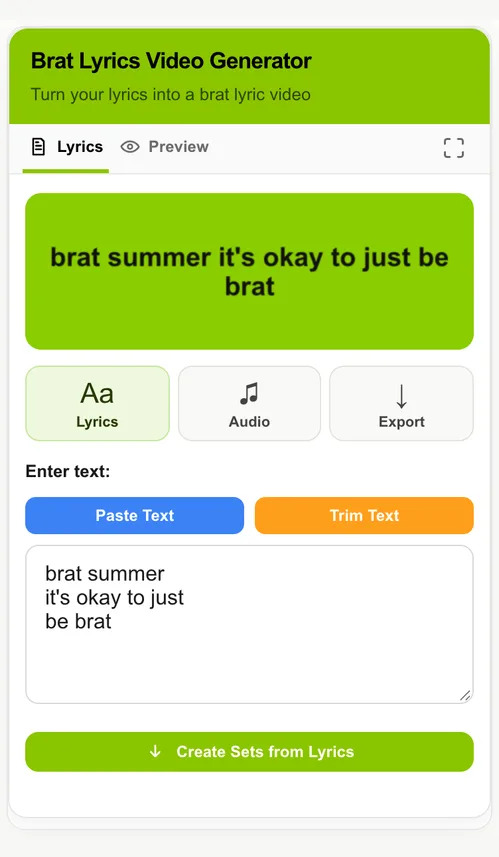
Begin in the Lyrics tab. Paste or type the wording you want to animate, then organise it into short non-empty lines so each part of the sequence stays readable when the export moves from line to line.

  • Use Paste Text when you already have the wording copied from another document or note.
  • Use Trim Text to remove extra spacing before you create the sequence.
  • Keep one short phrase per line when you want a cleaner lyric-style progression.
Quick tip: A line that looks comfortable as a still frame is usually easier to follow once the animation starts moving.
Brat Lyrics Video Generator: enter and organise text or lyrics step screenshot

Step 2

Create the sequence, set timing and preview

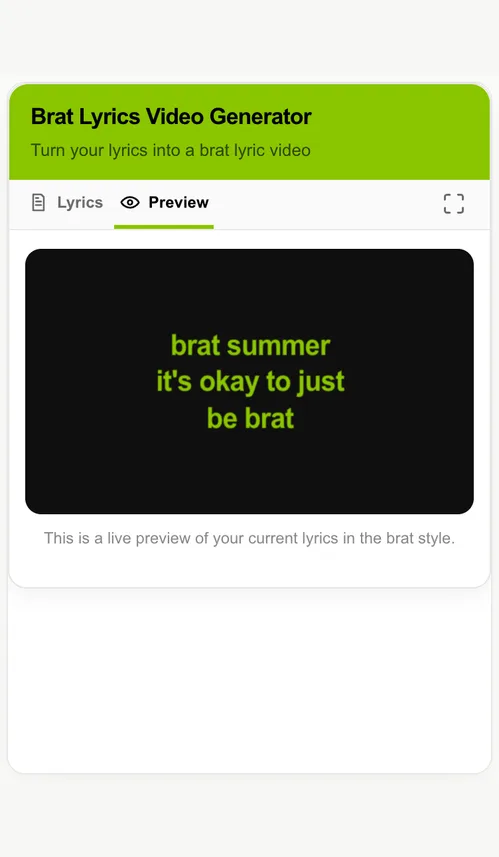
After the wording is ready, create timed sets from the non-empty lines. Give important lines more duration and transitions less, then open Preview to check the order before rendering the final animation.

  • Make sure no important line is missing or duplicated before export.
  • Adjust the duration beside each line when one phrase needs more or less reading time.
  • Use the preview as a content check; the final export follows the same line order and relative timing.
Quick tip: Fix wording problems before adding audio or increasing FPS. Text changes are fastest while the project is still simple.
Brat Lyrics Video Generator: create sequence and preview step screenshot

Step 3

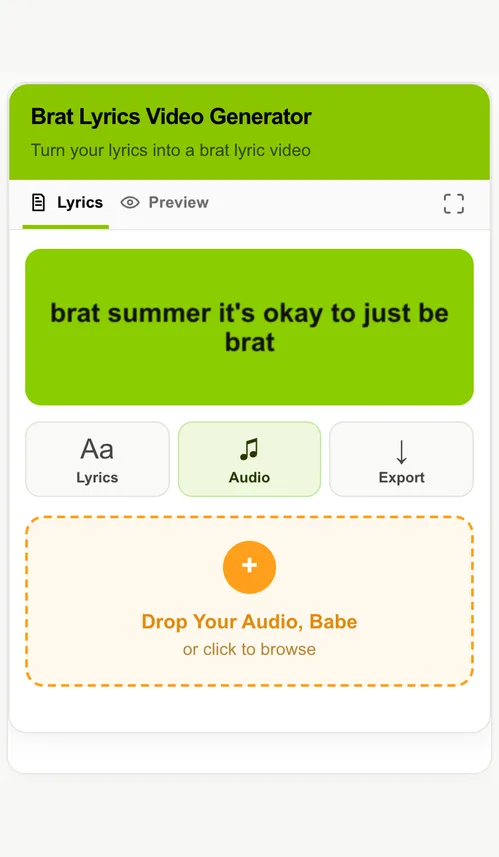
Add and trim audio when the video needs sound

Audio is optional. Drop in a supported file when the final video needs sound, then use the start and end controls to select the part of the track you actually want to render.

  • The tool accepts MP3, WAV, M4A, AAC and OGG files, although decoding can vary by browser and codec.
  • MP3 or WAV is a useful fallback if another format does not decode correctly.
  • Trim a long intro or outro before the final render so the text sequence is mapped to the useful section.
  • GIF and PNG-frame exports remain silent, so use the video option when the audio is part of the finished result.
Quick tip: If an audio file fails, first test the same project with a short MP3 or WAV before changing the text setup.
Brat Lyrics Video Generator: add optional audio step screenshot

Step 4

Choose FPS and export format

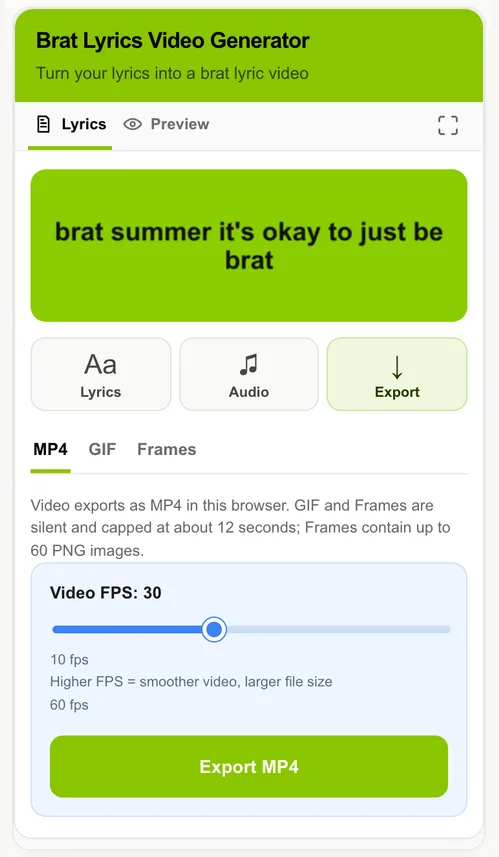
Finish by choosing how the animation should be delivered. Select Video, GIF or Frames, then set the frame rate and start the browser-based export.

  • Around 24–30 FPS is a good starting point for most short text animations.
  • Higher FPS can look smoother but creates more frames and requires more browser processing.
  • Use Video for motion with optional audio. GIF is silent and capped at about 12 seconds; Frames are also short-form and capped at 60 PNG images.
Quick tip: For a first export, use 30 FPS. Increase it only if you can actually see a benefit in the motion.
Brat Lyrics Video Generator: choose FPS and export format step screenshot

Brat Lyric Video Workflow

The most important video-specific choices are how you structure the text, how browser-based audio support behaves, and which export format makes sense for the next platform or editor.

Sequence

Text and Lyric Flow

The tool is line-driven rather than AI-transcribed or word-by-word karaoke timed. You control the phrase breaks and can give each line a different relative duration before export.

  • Use short, separate lines for hooks, captions and lyric phrases.
  • Remove empty or accidental duplicate lines before export.
  • Use the line-duration controls to hold important phrases longer and move through short transitions faster.
  • Preview the wording before you commit to a long render.
The tool does not automatically transcribe a song or manually place every word on a beat.

Audio

Sound and Browser Compatibility

Audio is decoded in the browser and added only to the video path that supports sound. You can also trim the start and end of the loaded track before rendering. Browser and codec support can still vary.

  • MP3 and WAV are useful compatibility-first choices.
  • M4A, AAC and OGG are accepted, but browser decoding support can vary.
  • Use the audio start and end controls to render only the section you need.
  • GIF and individual PNG frames do not contain audio.

Export

Video, GIF, Frames and FPS

Choose the output based on what you will do after export rather than choosing the heaviest option by default. Frame rate controls smoothness and processing cost, while format controls how the animation can be reused.

  • Video uses the best recording format your browser can provide.
  • GIF is useful for a short silent loop and is capped at about 12 seconds.
  • Frames ZIP gives you individual PNG images for retiming or compositing, with a current limit of about 12 seconds and 60 frames.

Motion Trend

From Static Brat Graphics to Animated Clips

The same simple text-first aesthetic works naturally in motion: keep each line short, make the contrast obvious, and let timing do the extra work instead of adding visual clutter. The Brat Video Tips guide has a practical workflow when you want to improve pacing and readability.

Static Style, Now in Motion

The familiar flat-colour Brat look becomes more dynamic when short phrases appear one after another instead of sitting on a single still image.

Built for Lyric-Led Clips

One phrase per line gives hooks, captions and short lyric sequences enough room to stay readable while the animation progresses.

Made for Short, Repeatable Formats

Video, GIF and frame exports make the same visual idea usable for short social clips, looping reactions and edits that continue in another app.

Key Features

Brat Lyric Video Features

The tool is focused on turning short text or lyric lines into a clean animated export without making the process complicated. If you are deciding between Video, GIF and PNG frames, the video export guide explains when each output makes sense.

Timed Brat Text & Lyrics

Turn short phrases or lyric lines into a moving sequence, then give important lines more time and transitions less.

Optional Audio & Trim

Add MP3, WAV, M4A, AAC or OGG audio, then choose the start and end section used by the video export.

Live Preview & FPS Control

Check the text treatment before export and choose 10–60 FPS to balance smoother motion with browser processing time.

Browser-Supported Video Export

Create a finished video using the best recording format supported by the browser you are currently using.

Animated GIF Export

Export a silent looping GIF for a short clip. GIF exports are capped at about 12 seconds in the browser tool.

PNG Frame ZIP

Download a short sequence as individual PNG frames in a ZIP. The current Frames export is capped at about 12 seconds and 60 images.

Content Ideas

What Can You Create?

Use the video tool for short, text-led motion where the words stay central and the export format matches what you want to do next.

Lyric & Music Clips

Turn a chorus, hook or short verse into a line-by-line Brat-style sequence and add audio when the final video needs sound.

Social Motion Posts

Create short animated title cards, captions and text-led clips for vertical or square social edits.

Looping GIF Reactions

Export a silent GIF when you want lightweight motion for reactions, previews, messages or quick posts.

Editable Frame Sequences

Download PNG frames when you want to continue compositing, retiming or adding extra effects in another editor.

FAQ

Frequently Asked Questions

Clear answers about lyric sequencing, audio support, frame rate and the export formats available in the current video tool. The video export guide compares the output choices in more detail.

Is the brat lyrics video generator free?⌄

Yes. It runs in your browser without an account, and it does not add a watermark to the exported video, GIF or frames.

How do I make a brat lyric video?⌄

Paste your lyrics with one phrase per line, create the sequence, give each line the time it needs, then add the song and trim it to the right section. Export as a video to keep the sound, or as a GIF or PNG frames for a silent clip.

Can I use a brat lyric video on TikTok, Reels or CapCut?⌄

Yes. Export the video and upload it like any other clip, or bring it into CapCut to add effects. If the app adds its own music, export without audio and pick the sound there instead.

How do I add lyrics to the brat generator?⌄

Paste the lyrics into the Lyrics tab, one phrase per line, then press Create Sets from Lyrics. Each line becomes its own timed slide, so you can give the chorus more time than the verses.

Is there a brat generator for video without lyrics?⌄

Yes. The brat lyric video generator animates any words, so a caption, a name or a short phrase works the same way as a song. Export it as a video, GIF or PNG frames.

Is this the same as a brat video generator?⌄

Yes. It animates any text, not only lyrics, so you can also use it for captions, title cards and short looping brat text clips.

Does it automatically transcribe or sync every word to the beat?⌄

No. You provide the text yourself. You can adjust the relative duration of each lyric line, but the tool does not use AI transcription or automatic word-by-word karaoke timing.

Which audio formats can I upload?⌄

The tool accepts MP3, WAV, M4A, AAC and OGG. Actual decoding support can vary by browser and codec, so MP3 or WAV is a useful fallback if another file does not load.

Which export formats are available?⌄

You can export a browser-supported video, a silent animated GIF, or a ZIP containing individual PNG frames. GIF and Frames are intended for short clips of about 12 seconds; Frames are also limited to 60 images.

What FPS should I choose?⌄

For most short lyric clips and social animations, 24–30 FPS is a good starting point. Higher settings can look smoother but require more browser processing.

Ready to create?

Make Your Brat Lyric Video Now

Paste your lyrics, add your song, then export a brat lyric video, GIF or PNG frames.

Start Creating